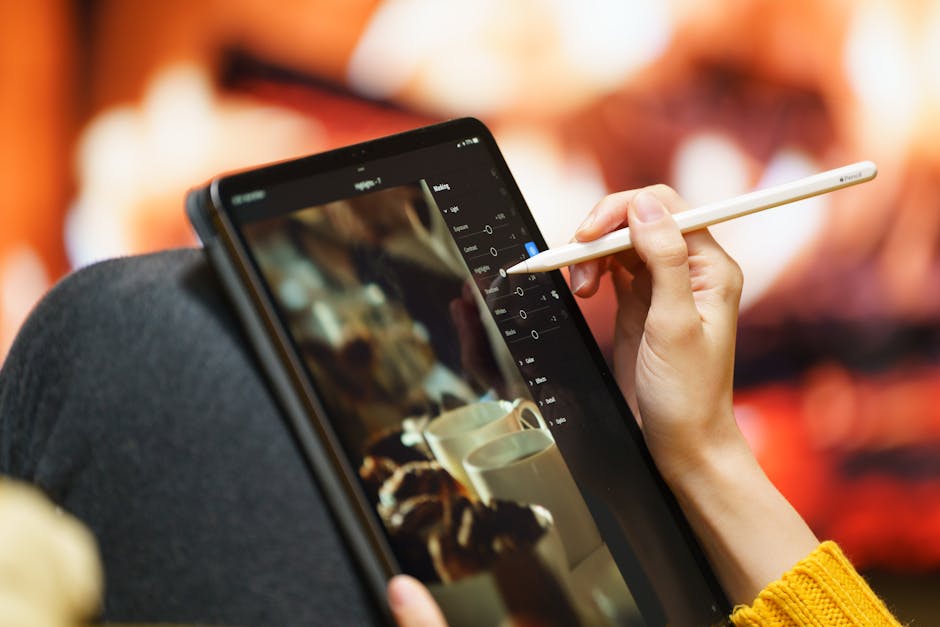

AI-powered photo editing tools have gone from quirky experiments to serious creative infrastructure. If you are a YouTuber, content creator, marketer, coach, or small business owner, the right tool can save hours on retouching, background cleanup, object removal, color correction, and even full image generation. But with so many options promising “one-click magic,” it is easy to waste money on the wrong platform.
This guide compares the leading AI photo editing tools for creators who want faster workflows without sacrificing quality. We will look at what each platform does best, where it falls short, and which type of creator should actually use it. Whether you need polished thumbnails, cleaner product photos, aesthetic Instagram visuals, or quick brand content at scale, this comparison will help you choose the right fit.

What Makes an AI Photo Editing Tool Worth Using?
Not every AI photo editor deserves a spot in your workflow. The best tools do more than apply generic filters. They solve real bottlenecks that creators face every week.
When comparing AI-powered editing platforms, pay attention to these factors:
- Speed: Can you make usable edits in minutes instead of opening a full desktop workflow?
- Image quality: Do results look natural, or do they create plastic skin, warped hands, or blurry edges?
- Ease of use: Is the tool beginner-friendly, or does it still require advanced editing knowledge?
- Automation depth: Can it remove objects, expand backgrounds, enhance lighting, and retouch portraits intelligently?
- Brand consistency: Can you maintain a consistent style across thumbnails, social posts, and promotional assets?
- Pricing: Does the value match your content volume?
For most creators, the ideal tool is not the one with the most features. It is the one that makes your repeatable tasks dramatically easier.
Adobe Photoshop and Lightroom: Best for Power Users and Hybrid AI Workflows
Adobe remains the most powerful option for creators who want advanced control plus AI assistance. Photoshop’s Generative Fill, Generative Expand, smart object removal, neural filters, and Lightroom’s AI masking make the Adobe ecosystem incredibly flexible.
Best for: YouTubers, photographers, designers, agencies, and creators who want pro-level results.
Where Adobe shines
- Generative Fill: Remove distractions, replace backgrounds, or add missing visual elements with text prompts.
- AI masking in Lightroom: Select sky, subject, background, clothing, or facial areas with impressive accuracy.
- Professional control: You can fine-tune edits instead of accepting whatever the AI gives you.
- Strong ecosystem: Easy integration with Creative Cloud, templates, libraries, and team workflows.
Where Adobe falls short
- Higher learning curve than simpler browser-based tools
- Subscription cost can feel heavy for casual creators
- Some AI generations still require manual cleanup for polished output
Practical example: If you create YouTube thumbnails, Photoshop is excellent for removing a messy background, extending the canvas for different formats, brightening your face, and adding dramatic text overlays in one workflow. That makes it ideal for creators who care about click-through rate and visual polish.
Bottom line: Adobe is still the best choice if you want AI to assist your editing, not replace your judgment.

Canva Magic Studio: Best for Non-Designers and Fast Content Creation
Canva has become one of the most practical AI creative platforms for everyday creators. Its AI editing tools are not always the deepest, but they are accessible, fast, and built for people who need social content, thumbnails, course slides, lead magnets, and promos without touching complex software.
Best for: Solo creators, coaches, educators, social media managers, and beginner YouTubers.
Key AI features in Canva
- Magic Edit: Replace or transform objects using natural-language prompts
- Background Remover: Great for profile images, product shots, and thumbnail cutouts
- Magic Eraser: Remove distractions quickly
- Design integration: Edit the image and place it directly into branded templates
Pros
- Very beginner-friendly interface
- Fast workflow for marketing assets
- Strong template library for creators
- Good all-in-one value if you also design presentations and social posts
Cons
- Less precise than Photoshop
- AI results can feel generic on complex edits
- Not ideal for high-end photography retouching
Practical example: If you run a small creator business and need an Instagram carousel, lead magnet cover, and YouTube community post in one afternoon, Canva is hard to beat. You can cut out a portrait, clean up the background, apply brand colors, and publish quickly.
Bottom line: Canva is the best AI photo editor for creators who prioritize speed and simplicity over maximum editing control.
Pixelcut and Photoroom: Best for Product Photos, Thumbnails, and Clean Cutouts
Pixelcut and Photoroom are two standout tools for creators who need sharp, clean, conversion-friendly visuals. They are especially useful for ecommerce sellers, affiliate marketers, faceless channel operators, and creators building visually consistent promotional images.
Best for: Product-based creators, ecommerce brands, thumbnail makers, Etsy sellers, and digital marketers.
What these tools do well
- Background removal: Usually fast and accurate
- Shadow generation: Helps product shots look more professional
- Template-ready output: Great for ads, listings, and social posts
- Batch-friendly workflows: Helpful if you process many assets repeatedly
Photoroom is particularly strong for product imagery and polished catalog-style visuals. Pixelcut is popular for quick creator graphics and mobile-friendly editing.
Strengths
- Excellent for removing messy backgrounds
- Good mobile experience
- Fast results for simple marketing edits
- Helpful for creators without studio space
Weaknesses
- Less useful for advanced portrait retouching
- Can feel narrow if you need a full creative suite
- Complex edges like hair or transparent materials may still need refinement
Practical example: If you promote digital products, merch, or physical tools in your videos, these platforms can make screenshots and product photos look cleaner and more premium. That can directly improve ad performance and landing page trust.
Bottom line: Choose Photoroom or Pixelcut if your biggest problem is making ordinary images look clean, commercial, and clickable.

Luminar Neo: Best for Creators Who Want Dramatic Photo Enhancements Fast
Luminar Neo sits in an interesting middle ground. It is more photography-focused than Canva, but easier to approach than Photoshop. Its AI tools are designed to create visually striking results quickly, especially for portraits, landscapes, lifestyle photography, and stylized brand imagery.
Best for: Lifestyle creators, photographers, travel creators, and visual storytellers.
Popular AI features
- Sky replacement: Quickly transform dull outdoor images
- Portrait enhancement: Smooth skin, brighten eyes, and shape lighting
- Relight AI: Adjust lighting depth intelligently
- Background cleanup and enhancement: Make compositions more dramatic
Pros
- Very fast for cinematic edits
- Strong portrait and outdoor enhancement tools
- Good for creators who want “wow” images without detailed manual editing
Cons
- Can be easy to over-edit images
- Less versatile for mixed business content workflows
- Some creators may prefer more realism than the default style encourages
Practical example: A travel creator can take an average cloudy photo, improve subject lighting, replace a dull sky, sharpen details, and create a far more engaging hero image for a blog post or YouTube banner.
Bottom line: Luminar Neo is ideal when you want fast, dramatic upgrades and a more polished visual style with less manual work.
Remini and Mobile AI Editors: Best for Quick Portrait Enhancements
Mobile-first AI photo apps like Remini are extremely popular because they promise instant glow-ups. For headshots, selfies, profile photos, and simple social visuals, they can be useful. But creators should approach them strategically.
Best for: Quick profile image cleanup, simple portrait enhancement, and mobile-first creators.
Why people use them
- Fast face enhancement
- Simple one-tap sharpening
- Useful for older, blurry, or low-resolution images
- Convenient for creators working mostly on phones
Main tradeoffs
- Results can look overprocessed
- Skin texture and facial details may become unnatural
- Limited control compared with desktop tools
Practical example: If you need a cleaner profile image for your YouTube channel, newsletter author page, or course platform, Remini can be a quick fix. But for primary brand photography, it is usually better as a starting point than a final workflow.
Bottom line: Mobile AI editors are useful for speed, but they are not the best long-term choice for creators who care about brand-level visual consistency.

How to Choose the Right AI Photo Editing Tool for Your Creator Workflow
The best platform depends on what you create most often. Here is a simpler way to decide:
- Choose Adobe Photoshop/Lightroom if you want the most control and create high-value visuals regularly.
- Choose Canva if you want an all-purpose content machine for social posts, thumbnails, and marketing assets.
- Choose Photoroom or Pixelcut if you need clean cutouts, product photos, and commercial-looking promotional images.
- Choose Luminar Neo if you want dramatic, photography-heavy enhancements with less manual effort.
- Choose Remini or mobile AI apps if you need quick portrait fixes on the go.
A smart strategy for many creators is using more than one tool. For example:
- Use Photoroom to remove a background from your face cutout
- Bring that image into Canva for thumbnail layout and branding
- Use Photoshop only for flagship assets where every detail matters
This hybrid approach often delivers the best balance of speed and quality.
Actionable Tips to Get Better Results From AI Photo Editors
Buying the right tool is only part of the equation. The creators who get the best outcomes use AI intentionally rather than blindly accepting every suggestion.
1. Start with the best source image possible
AI can improve a decent photo, but it cannot always save a terrible one. Better lighting, sharper focus, and cleaner composition still matter.
2. Use AI for repetitive tasks first
Object removal, background cleanup, masking, and lighting corrections are usually the highest-return AI edits. Let the software handle the boring parts so you can focus on creative decisions.
3. Do not over-edit faces
Creators often hurt trust by making portraits look too artificial. Keep some natural texture. A polished face is good. A wax figure is not.
4. Build a repeatable visual style
Save brand colors, thumbnail structures, and editing presets. This helps your content feel recognizable across YouTube, Instagram, newsletters, and blog posts.
5. Test editing styles against performance
If you are making thumbnails or promotional graphics, compare click-through rate and engagement across different image styles. A “better-looking” edit is only better if it supports your business goals.
Specific example: If brighter, tighter-cropped thumbnails consistently outperform cinematic but dark edits, let data guide your design choices.

The Final Verdict: Which AI Photo Editing Tool Is Best?
There is no single winner for every creator. The right AI-powered photo editing tool depends on your workflow, budget, and standards.
If you want the most powerful and future-proof setup, Adobe Photoshop and Lightroom still lead the pack. If you want simple, fast content creation, Canva is the easiest recommendation. If your business depends on clean commercial visuals, Photoroom and Pixelcut offer real value. If you want visually dramatic upgrades with minimal effort, Luminar Neo is a strong pick.
The bigger lesson is this: AI photo editing works best when it supports your creative process instead of replacing it. The winning creators are not the ones using the most tools. They are the ones using the right tool at the right moment to create better content faster.
As AI keeps improving, the advantage will go to creators who build efficient workflows now. Learn the strengths of these platforms, test them against your content goals, and keep the tools that genuinely make your work sharper, faster, and more effective.
FAQ: AI-Powered Photo Editing Tools Comparison
Which AI photo editing tool is best for beginners?
Canva is usually the best option for beginners because it combines simple AI editing with templates, branding tools, and an easy drag-and-drop interface. It is especially useful for creators making thumbnails, social posts, and lead magnets.
Is Photoshop still worth it now that so many AI editors exist?
Yes. Photoshop is still worth it for creators who want high-quality results and more control. Many AI editors are faster for simple tasks, but Photoshop remains more flexible for detailed edits, advanced compositions, and professional branding work.
What is the best AI tool for product photos and ecommerce images?
Photoroom is one of the best choices for product photos because it handles background removal, shadows, and clean commercial presentation very well. Pixelcut is also a strong option for fast promotional graphics.
Can AI photo editors improve YouTube thumbnails?
Absolutely. AI tools can remove backgrounds, enhance facial lighting, erase distractions, and help you create cleaner, more clickable thumbnails. Just make sure the final design still looks natural and matches your channel style.

